Windows 7 Window outside of visible area

If you are running Windows 7, maybe with an external screen attached to your Notebook, you might find the problem that sometimes new Windows will be opened outside of the visible area.

To get the windows back, activate the window in Task bar, go with the mouse to the sub item of the window –> right klick -> move

Now the window is active and you can easily move it with arrows on your keyboard.

QNAP NAS: File System not clean. Examination failed (Cannot unmount disk)

If you receive the following error message from your QNAP NAS:

The file system is not clean. It is suggested that you run „check disk“

and a disk check is failed with that message:

[Mirror Disk Volume: Drive 2 3 4 1] Examination failed (Cannot unmount disk).

ssh your qnap and do the following:

/etc/init.d/services.sh stop && /etc/init.d/opentftp.sh stop && /etc/init.d/Qthttpd.sh stop
umount /dev/md0
e2fsck -f -v -C 0 /dev/md0
mount /dev/md0
reboot

If you receive the following error while trying to unmount the device:
umount: /share/MD0_DATA: device is busy

try to figure out which process is still using the device:

# lsof +f -- /dev/md0
COMMAND PID USER FD TYPE DEVICE SIZE/OFF NODE NAME
sh 10721 admin cwd DIR 9,0 4096 16252936 /share/MD0_DATA/
lsof 29119 admin cwd DIR 9,0 4096 16252936 /share/MD0_DATA/
lsof 29120 admin cwd DIR 9,0 4096 16252936 /share/MD0_DATA/

Which indicates that your current shell is trying to use the device, simply use: cd / and umount again.

That should help

Raspberry Pi nagios open monitoring distribution

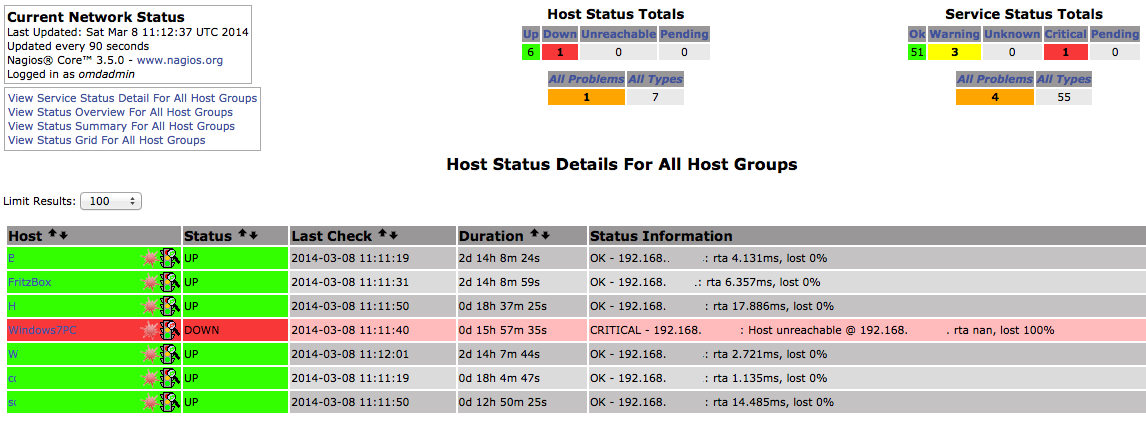
This Blog Post will cover a howto for a complete monitoring setup.

I wanted to create a monitoring solution for a bunch of Raspberry Pi, a FritzBox, a QNAP Nas, Windows Clients and Apple OSX Workstation.

The monitoring device is another Raspberry Pi with Raspian installed.

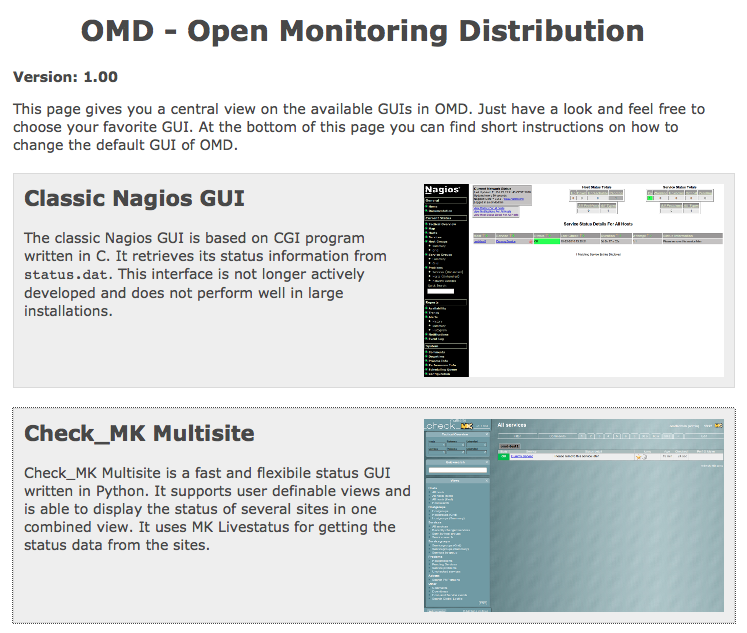
The first coice for a monitoring solution is of course Nagios. It’s free, it’s open source and it’s high scalable. The problem with Nagios out of the box: it’s complex, it is too complex to do it in the small home network.

To save time, there is an complete collection of tools called OMD – open monitoring distribution.

OMD avoids the tedious work of manually compiling and integrating Nagios addons while at the same time avoiding the problems of pre-packaged installations coming with your Linux distribution, which are most times outdated and provide no regular updates.

OMD bundles Nagios together with many important addons and can easily be installed on every major Linux distribution. We provide prebuilt packages for all enterprise Linux distributions and also for some other, such as Ubuntu.

A german howto for installing OMD on an Raspberry Pi is available here.

This monitoring pi is now named nagiospi.

But to use the version 1.0 you will need the following commands:


sudo su
echo 'deb http://labs.consol.de/repo/stable/debian wheezy main' >> /etc/apt/sources.list
gpg --keyserver keys.gnupg.net --recv-keys F8C1CA08A57B9ED7 #install PGP Key of Sven Nierlein sven.nierlein@consol.de
gpg --armor --export F8C1CA08A57B9ED7 | apt-key add -
apt-get update
pi@nagiospi ~ $ sudo apt-cache search omd
cp2k - Ab Initio Molecular Dynamics
customdeb - Modfies binary Debian package
dicomnifti - converts DICOM files into the NIfTI format
isomd5sum - ISO9660 checksum utilities
libtemplate-provider-fromdata-perl - module to load templates from your __DATA__ section
python-pyisomd5sum - ISO9660 checksum Python module
tofrodos - Converts DOS Unix text files, alias tofromdos
vrflash - tool to flash kernels and romdisks to Agenda VR
omd - Open Source Monitoring Distribution
omd-1.00 - Open Source Monitoring Distribution, containing Nagios,
root@nagiospi:/#apt-get install omd-1.00

After that you have to install a OMD site:


root@nagiospi:/#omd create pimon
will create a folder /omd/sites/pimon/tmp
root@nagiospi:/#ifconfig # to gather the IP of your Pi

You can now access the webpage using


The site can be started with omd start pipi. The default web UI is available at http://raspberrypi/pipi/ The admin user for the web applications is omdadmin with password omd. Please do a su - pipi for administration of this site.

root@nagiospi:~# omd start pimon
Starting dedicated Apache for site pimon…OK
Starting rrdcached…OK
Starting npcd…OK
Starting nagios…OK
Initializing Crontab…OK
root@nagiospi:~#

Now access http://$IP_OF_YOUR_PI/pimon with default credentials stated before.

To gather data, you will now have to login to another pi: senderpi.

The senderpi will provide an interface / port for the nagiospi to collect data. To do so, the script check-mk from Matias Kettner is perfect. It is available for Linux, Windows etc.

Want to learn more about Nagios / Monitoring:

root@senderpi:/#sudo apt-get install xinetd check-mk-agent

After that you have to edit at least the file: vi /etc/xinetd.d/check_mk
For security reasons, remove the # in the line and include the IP of $nagiospi

root@senderpi:/#vi /etc/xinetd.d/check_mk
only_from = 127.0.0.1 $IP_OF_YOUR_NAGIOSPI

so that only your nagiospi can access the port and the information.
To enable the script, change the value in the file from yes to:

disable = no

Restart xinetd:

root@senderpi:/# service xinetd restart
[ ok ] Stopping internet superserver: xinetd.
[ ok ] Starting internet superserver: xinetd.

Check if the service is running:

root@senderpi:/# netstat -anon | grep 6556
tcp 0 0 0.0.0.0:6556 0.0.0.0:* LISTEN aus (0.00/0/0)
root@senderpi:/# nc 127.0.0.1 6556
<<<check_mk>>>
Version: 1.1.12p7
AgentOS: linux
PluginsDirectory: /usr/lib/check_mk_agent/plugins
LocalDirectory: /usr/lib/check_mk_agent/local
AgentDirectory: /etc/check_mk
OnlyFrom: 127.0.0.1 $IP_OF_YOUR_NAGIOSPI
(...)

To increase security, use the following iptables rule to prohibit unauthorized access to the OMD / Nagios / mk-check port:

iptables -A INPUT -i eth0 -p tcp -s $IP_OF_YOUR_NAGIOSPI --dport 6556 -m state --state NEW,ESTABLISHED -j ACCEPT

You can also check from your nagiospi command line:

nc covert 6556 $IP_OF_YOUR_SENDER_PI

Now go to the page:

http://$IP_OF_YOUR_NAGIOSPI/pimon/check_mk/
Default username: omdadmin password: omd

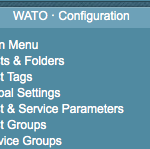
And go to „Hosts and folders“ on the left menu.

Click create host and insert all of the data:$IP_OF_YOUR_SENDER_PI.
–> Save and check services
Your nagiospi now tries to connect to your senderpi and checks for info.
Save it.
On the top screen there is a button „1 Change“ klick it and confirm it.

To change the password:

http://$IP_OF_YOUR_NAGIOSPI/pimon/thruk/#cgi-bin/conf.cgi?sub=users&action=change&data.username=omdadmin&

Now your host has been added to monitoring. All information should be available to your nagios and you will be alerted e.g. the SD card of the PI is running out of space.

Raspberry Pi Backup script

Hier mal ein Tipp zum Wochenende zu einem Raspberry Pi Backup script welches ganz modular angesteuert werden kann.

Zur Auswahl stehen dd, tar, rsync und xbmc.
Es kann auch ausgewählt werden, welche Anzahl an Backups vorgehalten werden soll.

Die Backups können dabei auf z.B. ein Qnap NAS, oder eine externe Festplatte gespeichert werden.

Das Backup script ist hier erhältlich.

Amazon Kindle Paprwhite Hard Reset

Probleme mit dem Amazon Kindle Paperwhite? Ist ein Software update des Kindles abgebrochen oder stehen geblieben?
Stürzt der Kindle Paperwhite beim Starten ab oder hat er Probleme, dass er statt in den Standby, wieder in den normalen Modus wechselt?

Der Amazon Kindle Paperwhite kann durch folgenden Kniff Hard Resettet werden:

20 Sekunden den Ein-/Ausschalter gedrückt halten

Dann startet das Gerät kalt durch.

Viel Erfolg

Raspberry Pi USV UPS

Raspberry Pi, the cheap computer for various stuff like a surveillance cam gets another cool toy: The PI USV from CW2.

While pis are used in more and more aspects, it gets critical to ensure power supply. A normal USV / UPS (unterbrechungsfreie Stromversorgung / uninterruptible power supply) is fine, but a spcial USV for the PI has some benefits:
– propper shutdown
– power supply monitoring to check the supply (batterie only, no batteries given, etc.)

The USV / UPS will be attached via the „normal“ micro USB

It will send signals like BATLOW, BATPOW, PIREADY via GPIO.
Even without using the GPIO ports, three LEDs are indicating the status of the USV.

Cw2. is based in Germany

Costs? 29,99 €.

or at Amazon:

PI USV can also be used as an Arduino USV and a Beaglebone USV (Arduino UPS / Beaglebone UPS)

Raspberry Pi als Überwachungskamera

Der Raspberry kann ja für einige Dinge genutzt werden. Nachdem es mittlerweile auch die Raspberry Cam in ausreichender Anzahl gibt, kann man au dem kleinen Rechner auch eine Überwachungskamera machen:

Ausführlicher Artikel / Anleitung

Was man dazu braucht?

Raspberry Pi:

Raspberry Pi Kamera:

Speicherkarte:

Gehäuse für die Kamera:

Netzteil:

Je nach Verfügbarkeit von LAN noch einen WLAN Stick

Wie man es umsetzt ist hier schön beschrieben:
Link zur Anleitung

That’s it Überwachungskamera für ca. 100 Euro und super leicht anpassbar.

Viel Spaß beim probieren

All-Inkl als DynDNS anbieter mit eigener Subdomain

Still und heimlich hat der Webhoster All-Inkl.com eine weitere Option ins Portfolio aufgenommen die ich als sehr praktisch erachte:

DynDNS mit der bei All-Inkl gehosteten Domain. Damit kann man z.B. eine Subdomain vpn.deinedomain.de nutzen und über die Fritzbox ganz einfach ein VPN aufsetzen. Wie die Einrichtung von All-Inkl als DynDNS Provider in der Fritzbox funktioniert wird hier erklärt:

http://all-inkl.com/wichtig/anleitungen/kas/tools/ddns-dynamisches-dns/einrichtung-fritzbox-7320_364.html

TimeMachine Backup per AFP mounten und reparieren

Um ein TimeMachine Backup zu reparieren, welches z.B. auf einem NAS liegt, kann man folgende Herangehensweise versuchen:

0. Sichern des Images

Bevor man irgenwelche Schritte durchführt, sollte man das Image sichern

„cp /share/TMBackup/Name.sparebundle /home/user/foo“

1. Mounten des Images auf dem Mac

sudo mkdir /Volumes/temp

sudo mount -t afp afp://user:pass@192.168.x.x/home/user/foo /Volumes/temp

oder alternativ über den Finder.

Über den Befehl findet man heraus ob es eingebunden wurde

mount

2. Image mit hdiutils bearbeiten

hdiutil attach -nomount -readwrite Name.sparsebundle


Ergebnis:

/dev/disk3              Apple_partition_scheme
/dev/disk3s1            Apple_partition_map
/dev/disk3s2            Apple_HFSX

wobei disk3 durchaus variieren kann

3. Fsck durchführen

fsck_hfs -rf /dev/disk3s2


4. warten

** /dev/rdisk3s2    Using cacheBlockSize=32K cacheTotalBlock=16384 cacheSize=524288K.   Executing fsck_hfs (version diskdev_cmds-557.3~1).** Checking Journaled HFS Plus volume.** Detected a case-sensitive volume.   The volume name is Time Machine-Backups** Checking extents overflow file.** Checking catalog file.** Rebuilding catalog B-tree.


Achtung: Das Image muss mit Schreibrechten gemounted werden, sonst kann nichts repariert werden.

Bei dem Fehler:

** /dev/rdisk3s2 (NO WRITE)
Can’t open /dev/rdisk3s2: Permission denied

Ggf. versuchen den Befehl per sudo auszuführen.

See:

http://tonylawrence.com/blog/2012/08/11/fixing-corrupted-time-machine-backups/

How to fix a Corrupted Time Machine Backup

Wer sich fragt was TimeMachine ist – TimeMachine ist die Backup Technik, vorgestellt am 26. Oktober 2007 mit der OSX Version 10.5 Leopard eingeführt wurde. Die Speicherung erfolgt auf HFS formatierte Festplatten / Netzlaufwerke. Apple vertreibt auch einige Hardware mit TimeMachine unterstützung die als Speichermedium dienen. Einige NAS Hersteller haben mittlerweile auch TimeMachine Server Funktionalität eingebaut.